Writing space / iPhone Duo & iPad
Your space.
Your way.
Give your words more room, bring your writing tools closer, or arrange them around the fold. Shape Notepad’s writing space to suit the way you work.
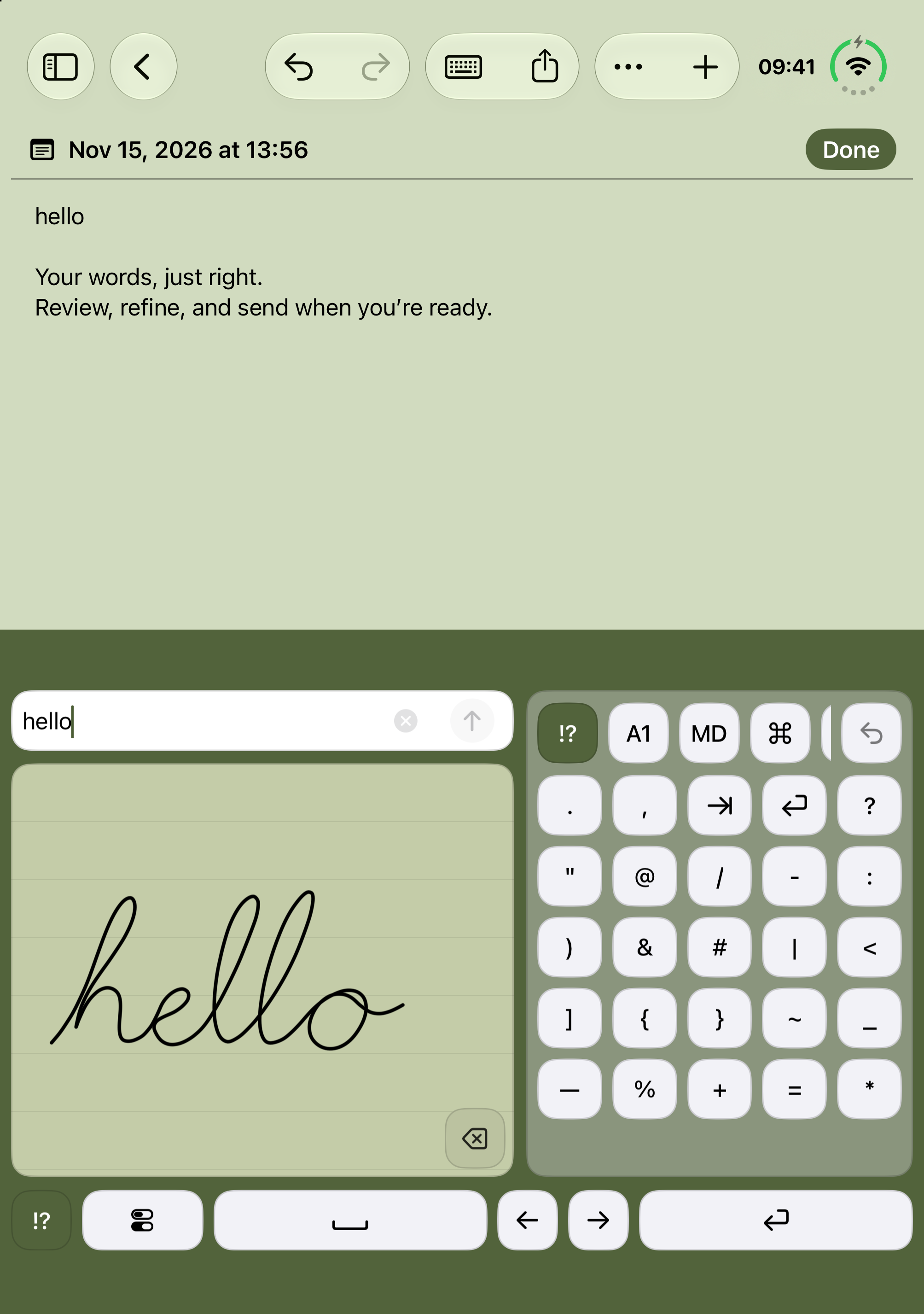
Text above. Writing tools below. Notepad in Duo’s laptop layout.
01 / Follow the fold
Made for both sides
of iPhone Duo.
In book and laptop positions, Hinge Layout places your note and writing area on opposite sides of the fold. Read on one side and write on the other, with space kept clear around the hinge.
Book or laptop.
Keep text beside your writing area in a book layout, or above it in a laptop layout. Use Swap to put the writing area on the side you prefer.
Choose how it adapts.
Hinge Layout is on by default. Turn it off to use your chosen Rows or Columns arrangement while Duo is partially open. Closing Duo returns to a compact phone layout.
In an open note: More (•••) → Hinge Layout
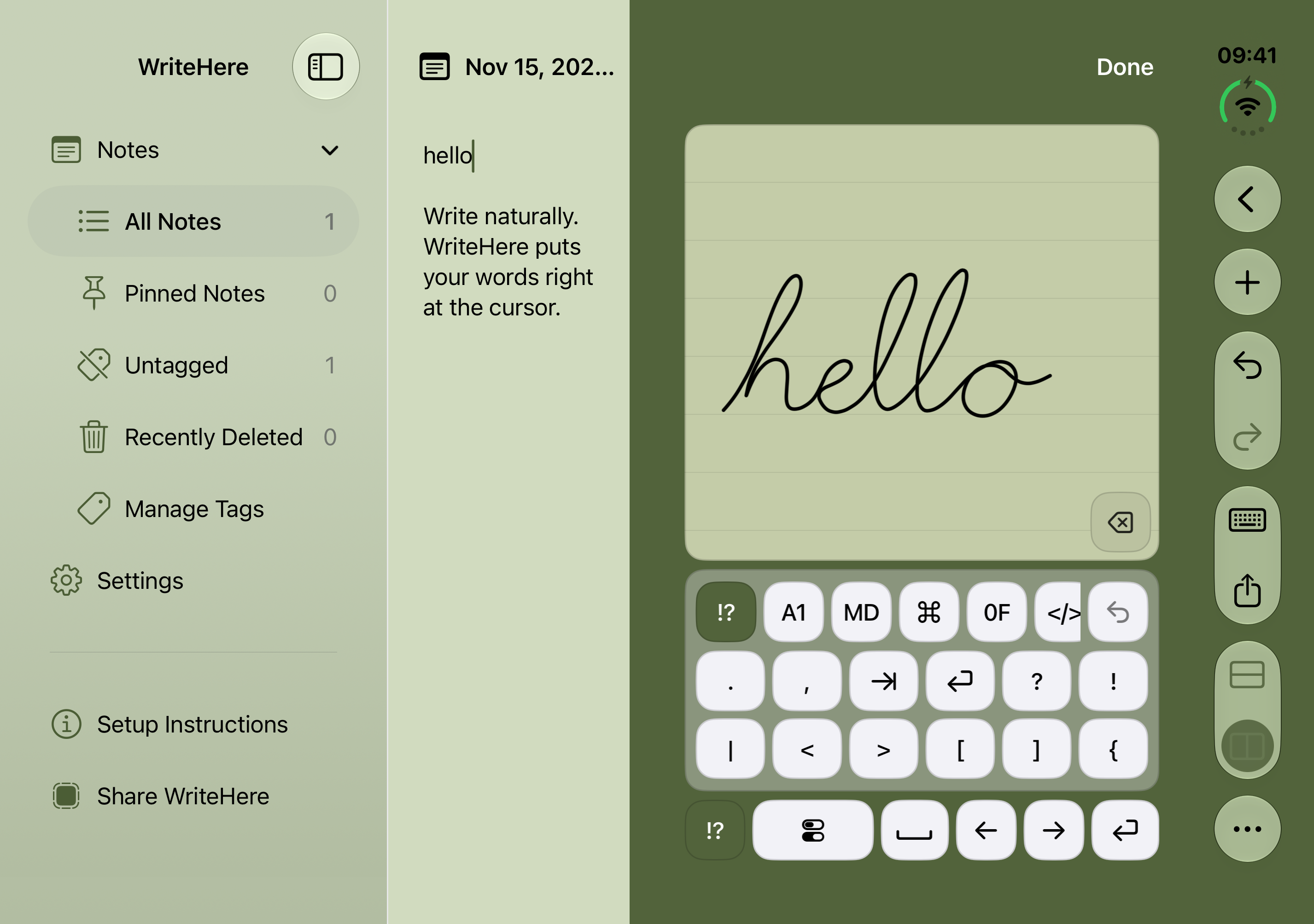
Duo’s book layout keeps the note and writing tools on opposite sides of the hinge.
02 / Find your balance
More room for the thought.
Or the next line.
Drag the divider between your text and writing area to give either one more space. Use Rows to stack them, Columns to place them side by side, and Swap to change their order.
Adjust the space.
Move the divider’s grip to change the balance between the document and writing area.
Swap the panes.
Put writing above or below your text, or move it to the other side.
Change the arrangement.
Switch between Rows and Columns when both arrangements fit your window.
Layout choices are remembered separately for portrait and landscape. With Hinge Layout active, the fold sets the split; use Swap to change sides, or turn Hinge Layout off to resize freely. Layout commands are also available in More, with VoiceOver actions on the divider.
03 / Bring writing closer
Give your Writing Window
a place of its own.
Detach the Writing Window to let your document use more of the screen. Move the writing surface where it feels comfortable and resize it to suit your handwriting.
Move and resize.
Drag the bottom grip to move the window. Drag its bottom-right corner to resize it. Your ink, Register text, and editing session stay with you.
Dock when you’re ready.
Choose Dock Window to return to the split layout. WriteHere remembers your floating size and position for the next time you detach.
Writing Tools → Detach Window / Dock Window
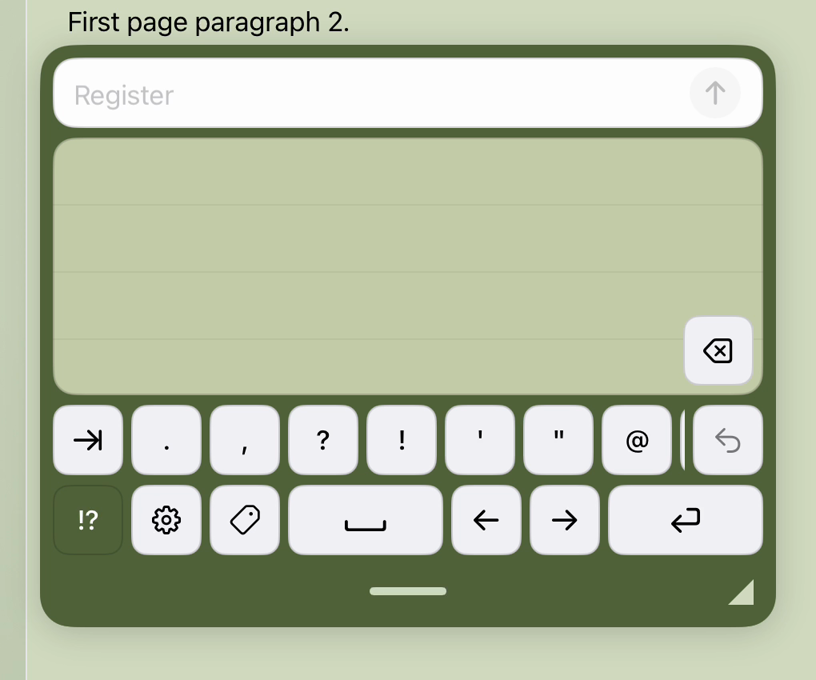
A detail of the floating Writing Window, with its move grip and resize corner below the keys.
Detaching is available in the full app on iPad and in Duo’s open layout when the window has enough room. On Duo, turn off Hinge Layout to keep a floating arrangement while partially folded. Compact windows temporarily return to docked writing.
04 / Keep useful keys close
A small bar.
Or your own palette.
Keep punctuation, symbols, dates, and Markdown within reach. Choose the compact Quick Keys bar, an embedded palette beside or above your writing area, or a separate floating palette in the full app.
Make room for your keys.
With Embedded, choose Left or Right beside the writing area, or Top or Bottom when the writing pane sits beside your document. Available placements adapt to the space.
Let the palette float.
Choose Detach, then move and resize the palette independently of the Writing Window. Minimize it to a floating button and expand it when you need more keys.
Quick Keys button → Palette Style → Bar / Embedded / Detach
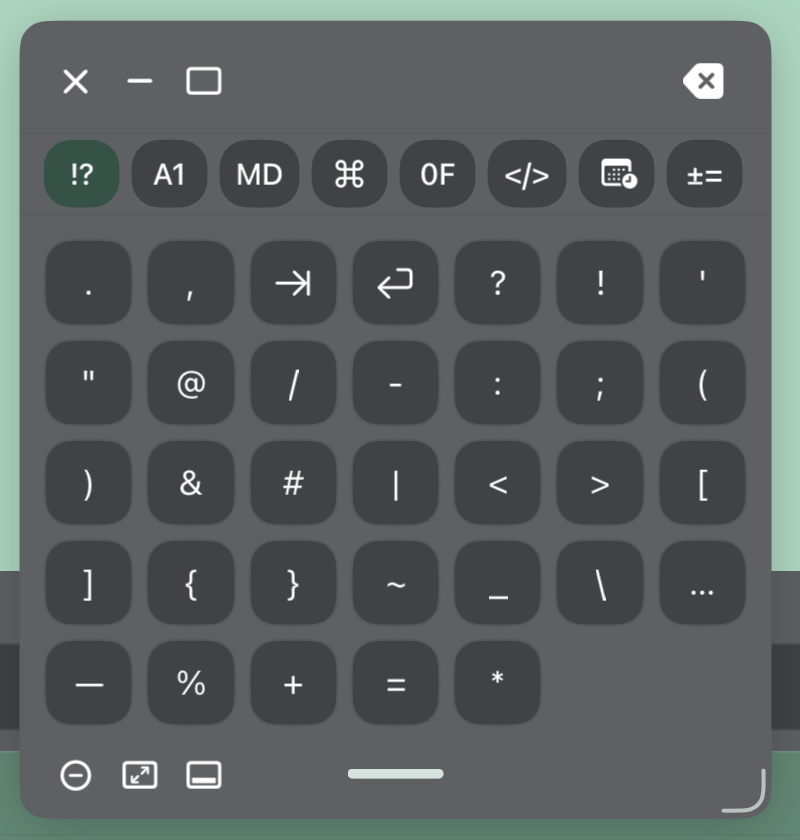
The floating Quick Keys palette in Charcoal. Move it separately from your writing surface.
The Keyboard Extension also supports Bar and Embedded styles. Floating palettes are available inside the full app; the Keyboard Extension and App Clip keep their tools docked.
Make yourself comfortable.
Choose a theme, writing background, and text appearance to finish setting up your space.