Settings and
Appearance.
Choose how WriteHere looks, recognizes handwriting, and arranges your writing tools. Adjust themes, fonts, writing backgrounds, Quick Keys, and more.
Where to find settings
In the app.
On iPadOS, choose Settings in the sidebar. Otherwise, open the options/overflow menu (•••) and choose Settings. User Interface contains appearance and Writing Window options; Handwriting, Gestures, and Editor have their own settings pages.
While writing.
Tap Writing Tools—the two-switch settings button—for Cursor or Register, automatic or manual recognition, and text transforms. Choose Settings… for more options.
Nine theme choices.
Use Automatic to follow your device’s appearance, choose Light or Dark, or select one of six color themes.
Settings → User Interface → Color Theme
- Sage
- Forest
- SlateInspired by Apple Newton
- CharcoalInspired by Palm
- SilverInspired by Pocket PC
- BerryInspired by BlackBerry
The app’s color theme and the Writing Window’s background can be set separately.
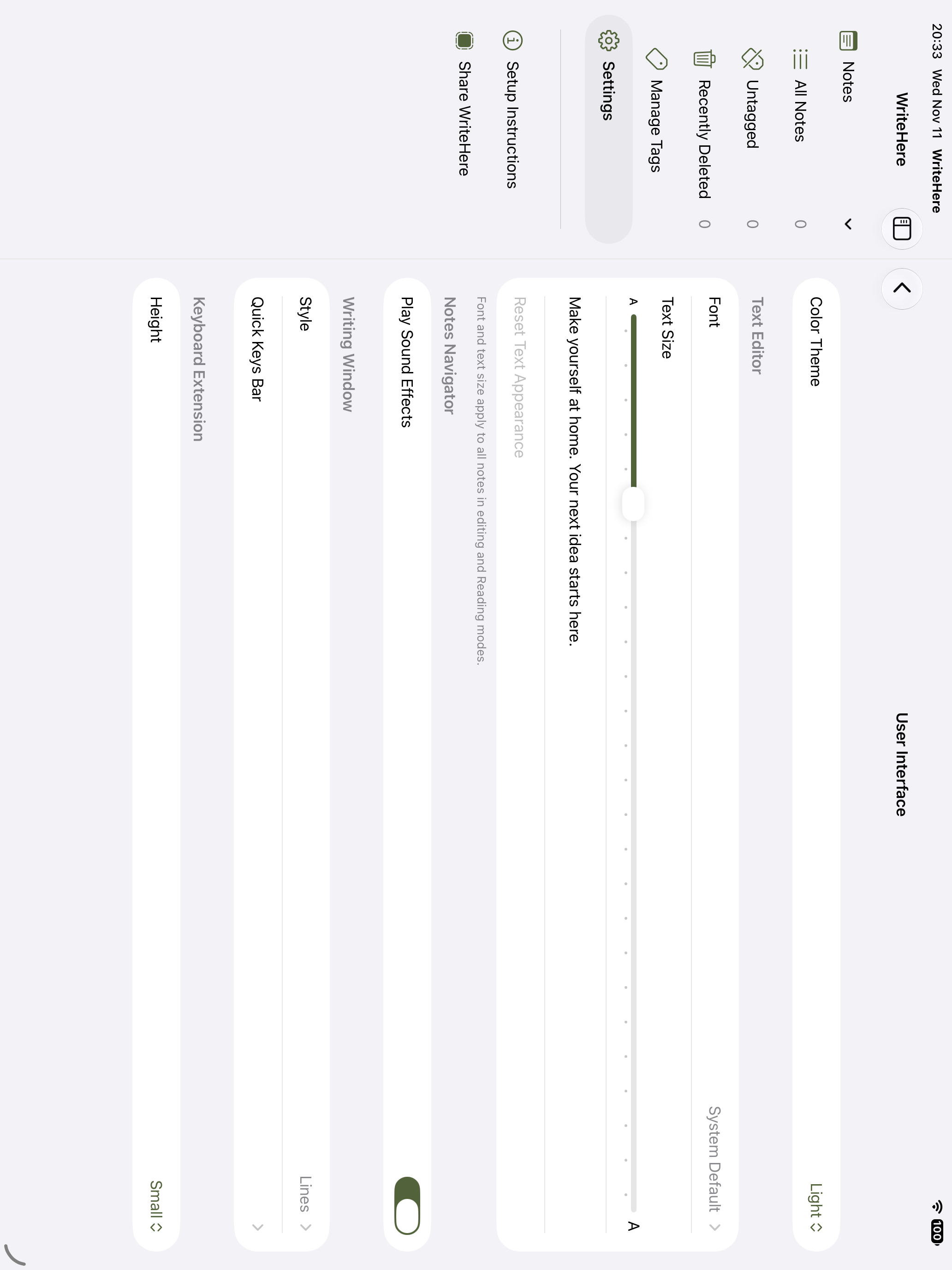
Appearance and Writing Window controls in User Interface settings.
Set up your Writing Window.
Choose a background and arrange the writing area to fit your screen.
Background and spacing.
Choose Lines, Dotted Lines, Grid, Dots, Handwriting Guides, Writing Squares, or None. Adjust the spacing and use a theme background, another preset color, or a custom color.
Notepad layout.
Use Layout in Notepad’s More menu to arrange the text and writing panes in Rows or Columns where space allows. Swap their positions and adjust the divider.
Keyboard size and controls.
Choose the Keyboard Extension’s Window Height and the delete button’s position in User Interface settings.
Writing backgrounds: Settings → User Interface → Writing Window → Style
Control recognition and editing.
Recognition timing and languages.
Recognize handwriting Immediately or Manually. Choose Fast, Normal, or Slow recognition timing, select from the languages available on your device, and adjust pen thickness.
Cursor or Register.
Send recognized text directly to the cursor as you write, or gather it in the editable Register to review before tapping Send.
Gestures and text transforms.
Enable editing gestures, adjust the hold duration, and choose swipe options for Space and Return. Use Text Transforms to change letter case, join words, or format numbers, email addresses, and URLs.
Settings → Handwriting · Settings → Gestures
Explore text transforms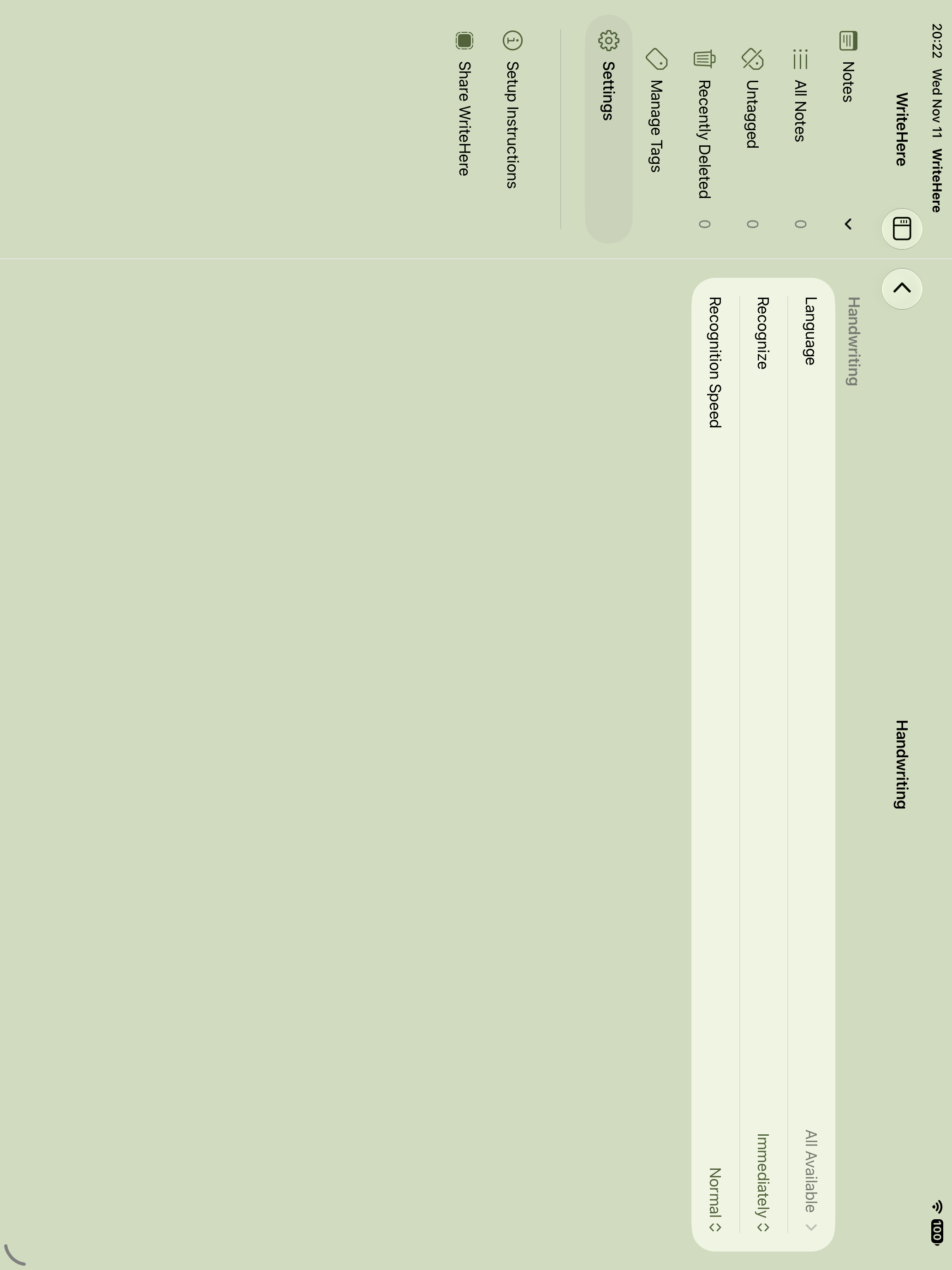
Choose the recognition languages, mode, and timing that suit your handwriting.
Keep useful keys close.
Choose and reorder bars.
Enable the Quick Keys bars you use and drag them into your preferred order. Choices include Punctuation, Numbers, Letters, Markdown, Symbols, Coding, Date & Time, Math, and Currency.
Arrange the palette.
Choose horizontal or vertical scrolling for embedded and floating palettes. The compact Quick Keys bar scrolls horizontally. Use the Quick Keys button while writing to choose a bar or show or hide it.
Settings → User Interface → Writing Window → Quick Keys Bar
Adjust text and reading.
Default font and size.
Choose a default editor font and text size in User Interface settings. Preview the result before returning to your notes.
Appearance for individual notes.
Open a note’s details to choose its own font and text size, or reset it to the app defaults. Text continues to adapt to your device’s accessibility settings.
Editor and Markdown options.
In Editor settings, configure automatic spacing, Markdown checklist completion, Markdown Returns, and the reading display.